How to Turn a Long Video Into Shorts With AI
To turn a long video into Shorts with AI, add the video or its YouTube link to an AI clipping tool, let it find the moments that stand on their own, reframe them to vertical 9:16, add captions and a hook title, then review every clip before you post. The AI saves you hours of scrubbing. Your review is what decides whether a clip makes sense to someone who never saw the full video.
What makes a moment work as a Short
A Short is watched by people who have not seen the rest of your video. Before trusting any score, check each candidate moment against four questions:
- Does it make sense without the minutes before it? Lines like "as I said earlier" usually do not.
- Is it one idea? A clip that starts a second point should end before it.
- Does the first sentence give a reason to keep watching? A claim, a question or a surprising number works.
- Does it end on a complete thought, not mid-sentence?
Step 1: Start from a video you have the rights to
Clip your own videos, or ones you have permission to use. In Viewcat you can paste a link to a single public YouTube video up to 6 hours long, or upload a file up to 20 GB. Playlists and live streams are not supported.
Step 2: Let AI find the candidate moments
Viewcat transcribes the whole video in short speech chunks. Viewcat AI then reads the numbered sentences and picks the moments most likely to work as Shorts, each with a hook title, a 0–10 score built from four sub-scores, and a reason.
On Auto it picks about one clip per five minutes of video, up to 20, each between 15 and 90 seconds. You can instead choose a fixed count and a length range: under 30 seconds, 30–60, 60–90, 90 seconds to 3 minutes, or 3–5 minutes.
Step 3: Choose how the frame becomes vertical
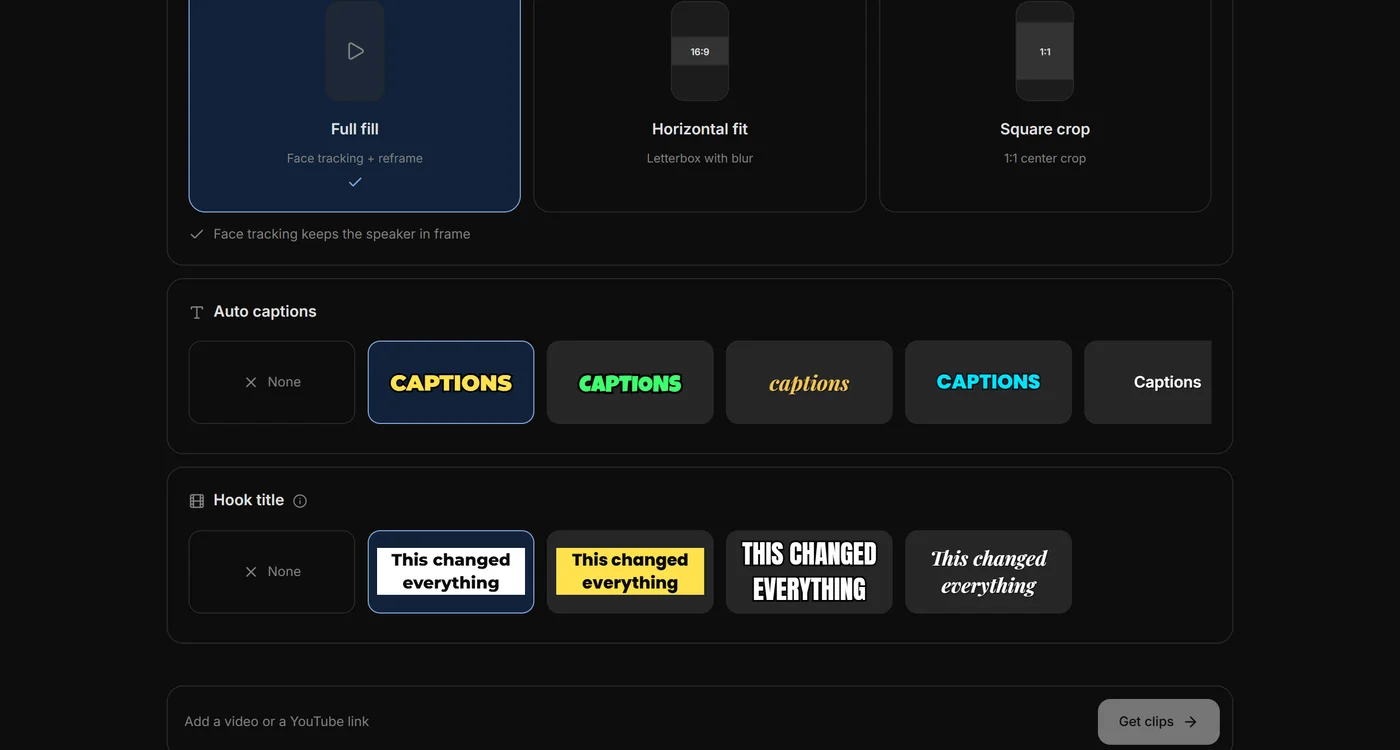
- Full fill crops to 9:16 and uses face tracking to keep the speaker in frame. With two or three people on a steady shot, it cuts to whoever is talking.
- Horizontal fit keeps the whole wide frame, letterboxed over a blurred copy. Use it for screen recordings and wide shots where cropping would lose the point.
- Square crop takes a 1:1 centre crop.
Step 4: Add captions and a hook title
Many people watch Shorts with the sound off, so captions carry the clip. Pick a caption style and a hook-title style, or none. Viewcat burns both into the exported 1080×1920 MP4, which suits YouTube Shorts, TikTok and Instagram Reels.
Keep the hook title short and true to the clip. A title that promises more than the clip delivers loses viewers in the first seconds.
Step 5: Review every clip before posting
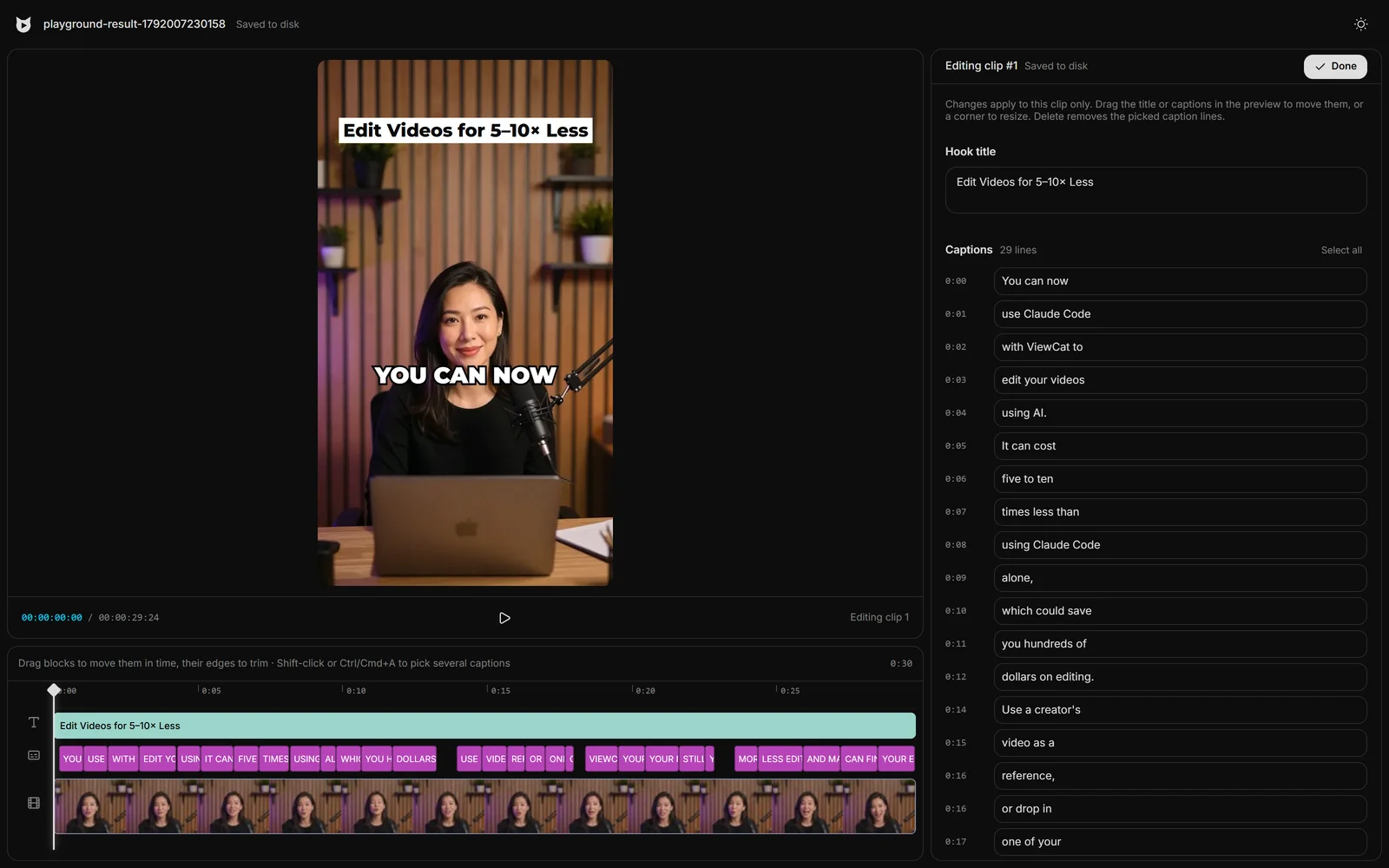
Open each clip in the clip editor. Changes apply to that clip only and save automatically.
- Spelling in captions, especially names and brands. In the clip above, the transcript wrote "ViewCat"; retype the line to fix it.
- The first word starts cleanly and the last word finishes.
- Captions and the title sit clear of the speaker's face. Drag or resize them on the preview if not.
- The hook title matches what the clip actually says.
Doing it by hand
Without an AI clipper, read the transcript and mark lines that pass the four questions, cut each one out, set the project to 9:16, reframe and add captions. Viewcat's free plan includes the manual editor and auto captions for this route; automatic clipping is a paid feature.
Questions creators ask
Read more about AI clipping or turning a YouTube link into Shorts.