Free AI Video Editors: What You Get Before You Pay
A free video editor and a free AI editing workflow can mean very different things. One gives you manual tools for a whole project. Another lets you try a few automated tasks before a limit kicks in. Before uploading a long recording, check the exact job you want automated and the conditions for downloading the finished video.
Separate the editing job from the AI job
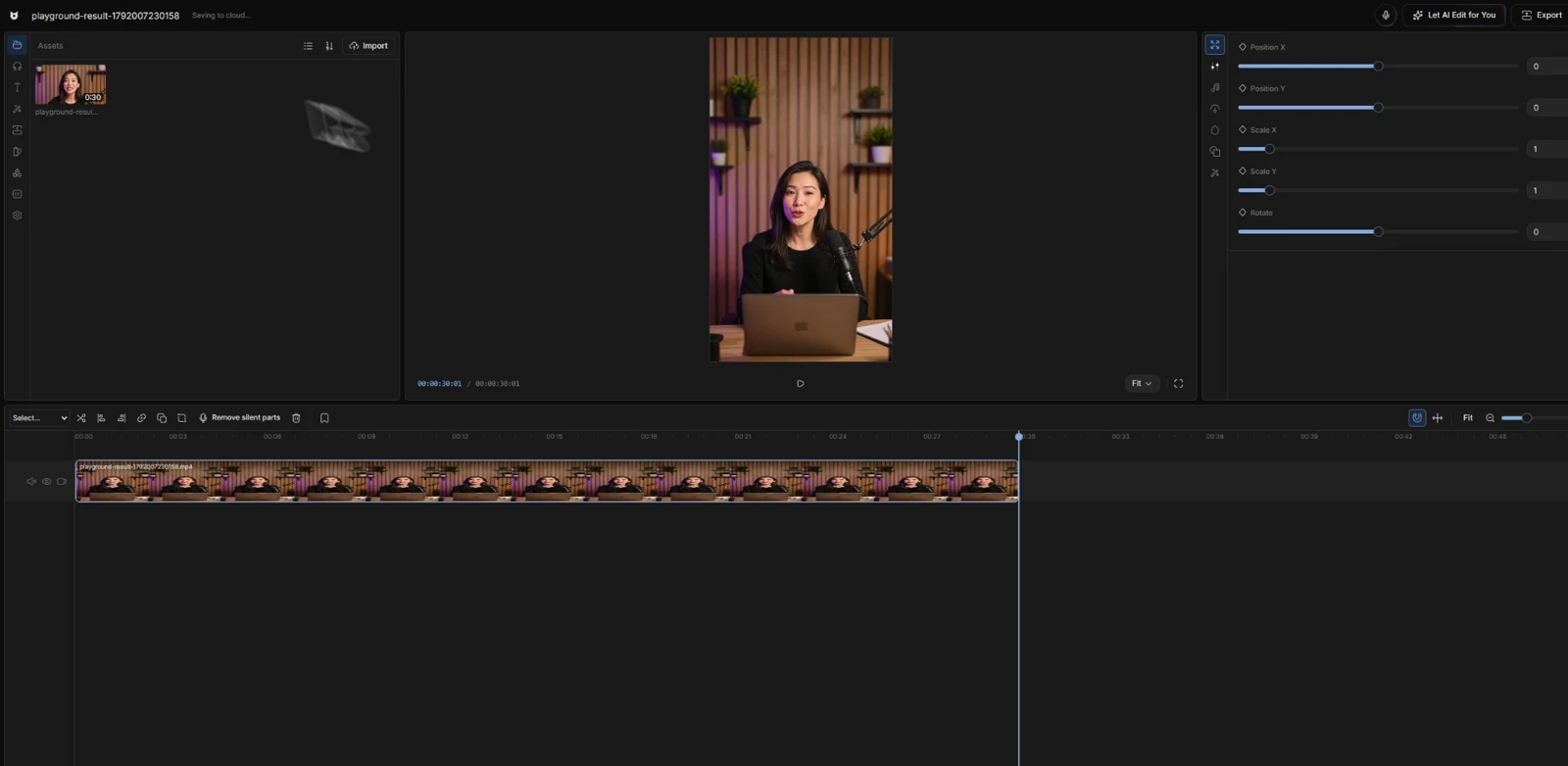
Trimming a clip, moving a title, and placing B-roll are editing jobs you can do manually. Transcribing speech, selecting cuts automatically, or applying changes from a prompt are automated jobs. A plan may include one group and charge for the other.
“Free AI video editor” is therefore a starting point for research, not a complete description of what you will receive. Ask these questions before you build a project around a tool:
| Question | Why it matters |
|---|---|
| Can I make the edits I need? | The free timeline may be useful even when AI tools are paid. |
| What AI usage is included? | A one-time trial differs from a renewing allowance. |
| What can I download? | Check watermark, resolution, duration, and export limits. |
| What happens on my next project? | An allowance that covers one test may not cover a weekly video. |
Clipchamp: a documented free starting point
For personal accounts, Microsoft lists a free plan with core editing tools, free stock media, and watermark-free exports up to 1080p. Clipchamp’s autocaptions guide also describes automatic captions as free.
That is a concrete combination to investigate if you need captions and a basic editing workflow. Inspect the media and effects you use: premium elements and higher-end features have separate access terms. Personal-account terms also differ from work and school licensing.
Descript and VEED: check the allowance and the download
Descript’s free plan includes limited media usage and a one-time AI credit allowance. The distinction matters: one-time credits do not establish that the same amount returns each month. Check the current plan table against the length and frequency of your recordings.
VEED’s editor FAQ describes basic free editing, 720p exports with a watermark, and one-time trials for AI features. If your project needs an unwatermarked download or repeated automated work, check the relevant paid terms before editing the full video.
For either tool, identify the feature you need by name. Access to an editor does not automatically include every AI action shown elsewhere on the site.
A free manual editor may be enough
If the budget matters more than automation, Shotcut is a free, open-source editor for Windows, macOS, and Linux. It offers a timeline-based route for working through the edit yourself.
DaVinci Resolve also has a free version alongside the paid Studio edition. Blackmagic lists additional advanced AI capabilities in Studio, so check the edition for any particular feature you intend to use.
Manual editing is a reasonable choice for a short tutorial or an occasional upload. The tradeoff is your time: you decide which takes to keep, enter or arrange text, and place supporting shots. If that is the part you enjoy, an AI allowance may not be your main buying criterion.
What Viewcat plans to include for free
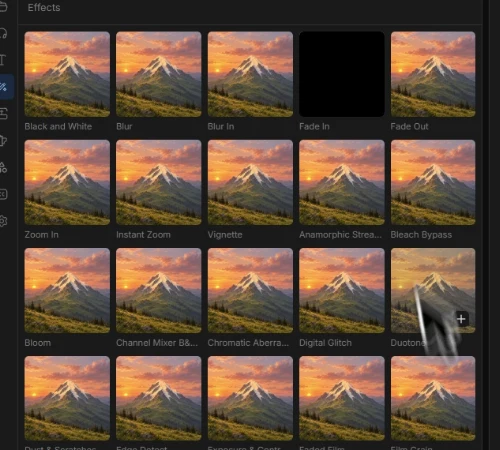
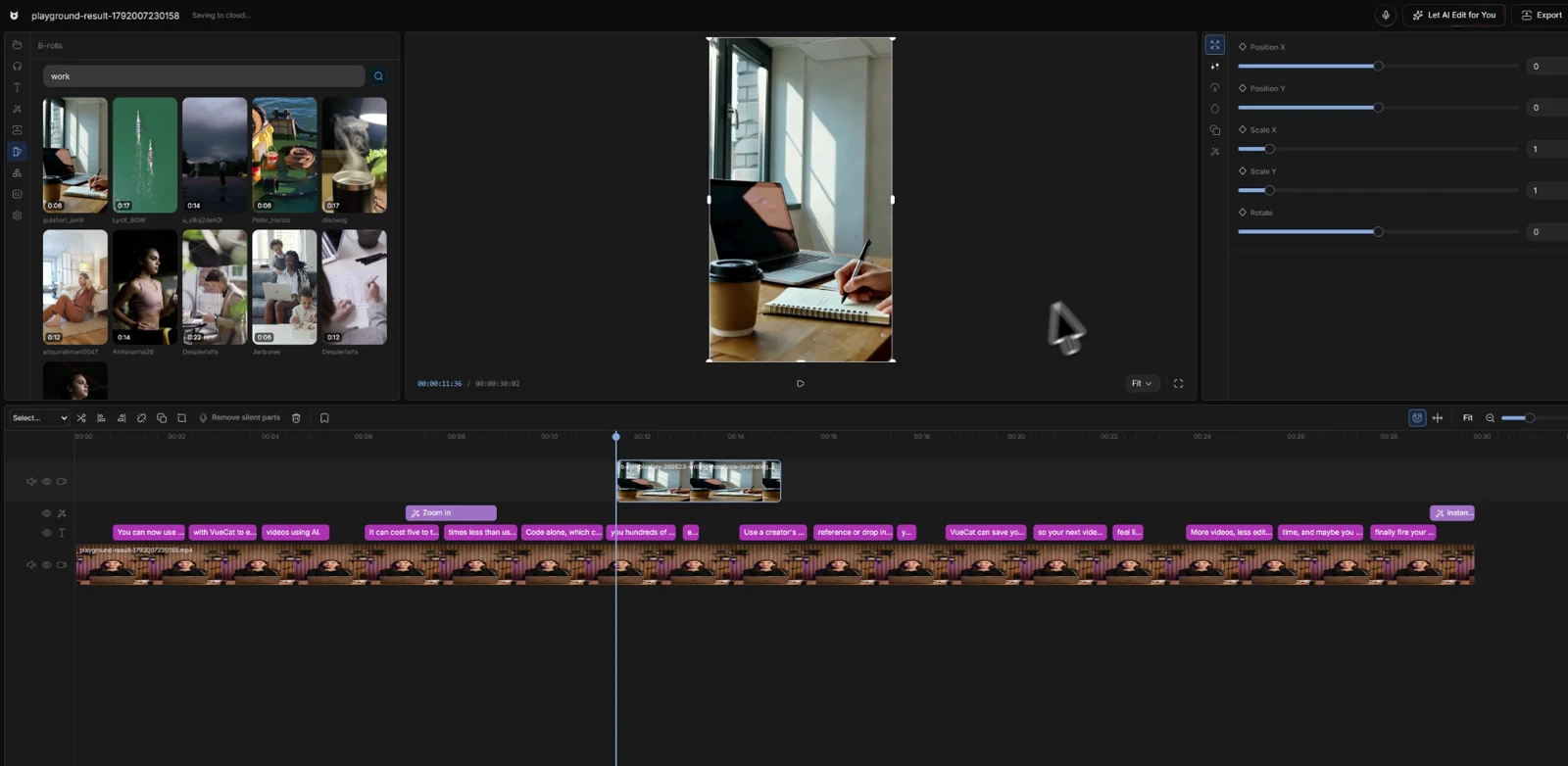
Viewcat’s free plan is being designed around the normal editor. You can upload footage and work on the timeline, enter captions one at a time, and use effects, transitions, and B-roll. The automated workflows are planned for paid access.
| Free manual editor | Paid automation |
|---|---|
| Video uploads and normal timeline editing | Mic mode |
| Captions entered manually, one at a time | Automatic captions |
| Effects, transitions, and B-roll | Let AI edit for you: cleanup and HyperFrames |
Export limits, watermark policy, video-length limits, and any AI credit amounts have not been confirmed for launch. We will update this guide when those terms are set. The feature split above is not a promise of unlimited exports or free automatic editing.
Make a useful first project without paid AI
Take a short clip where you explain one thing. Put the clearest opening first, keep the complete explanation, and add text only where it helps the viewer. You can make those choices without an automated rough cut.
- Work from a copy of a short recording you own.
- Get the clip order right before styling it.
- Add a few useful text labels or manual captions.
- Use a supporting shot or effect for a specific reason.
- Check the current export terms before relying on the finished download.
If a fully captioned long video is essential and typing the captions is impractical, choose a plan that includes automatic captions. A free manual editor might still be useful, but it does not solve that particular workload.
Choose for the videos you will make next month
Think beyond the first test. How long are your usual recordings? Does every upload need captions? Do you want help choosing cuts, or do you mainly need a place to assemble them? Those answers make plan comparisons much easier.
For workflow choices, read our AI video editor comparison. For a practical first edit, follow how to edit videos with AI. You can also explore Viewcat’s planned features as development continues.
Sources and further reading
Product details checked 2026-10-15. Plans can change.