How to Copy a Video's Editing Style (With AI or by Hand)
To copy a video's editing style, break the reference into the decisions behind it: how often it cuts, how the captions look, when text cards and zooms appear, and which fonts and colours repeat. Then apply those decisions to your own footage, by hand on a timeline or by giving the reference to an AI editor. You copy how the video is edited, never its footage, voice or music. This guide covers both methods and what to check afterwards.
Is it OK to copy someone's editing style?
Editing techniques such as fast cuts, bold captions and punch-in zooms are shared across thousands of channels. What belongs to the other creator is their footage, voice, music, logo and recognisable characters. Use their video to study the decisions, then make those decisions with your own material.
Two habits keep you on the right side: never put their clips in your video, and do not make your channel look like theirs to the point viewers could confuse the two. This is general guidance, not legal advice.
Break the reference into parts
Watch the reference once for enjoyment, then again at half speed with notes. Write down what you see in plain words you could hand to an editor. This style sheet is the same whether you rebuild the look yourself or ask AI to.
| Part | What to look for | How to write it down |
|---|---|---|
| Cut rhythm | How long shots last; whether pauses are removed | "Cuts every 2–3 seconds, no pauses, no breaths" |
| Captions | Size, font, colour, position, words per line, highlighted words | "Two to three words, bold white, lower third, key word in yellow" |
| Text cards and graphics | When they appear, what they show, how they enter | "A title card for each new point, sliding in from the left" |
| Camera moves | Zooms, punch-ins, shakes on emphasis | "Slow push-in during the story, quick zoom on the punchline" |
| Look | Fonts, colour palette, backgrounds | "Dark background, orange accents, one sans-serif font" |
| Sound | Music level, sound effects on graphics | "Quiet music, a soft whoosh on each card" |
Method 1: Rebuild the style by hand
- Cut your footage to the reference's rhythm first. Remove pauses and repeated takes before anything else.
- Set up captions to match the size, colour and position on your style sheet, then fix any misheard words.
- Add text cards at the same kinds of moments the reference uses, not at the same timestamps.
- Add zooms and transitions sparingly, where your own emphasis falls.
- Save the caption and text settings so the next video starts from them.
Viewcat's free plan covers this route: the full manual editor, auto captions, and effects and transitions.
Method 2: Copy the style with AI
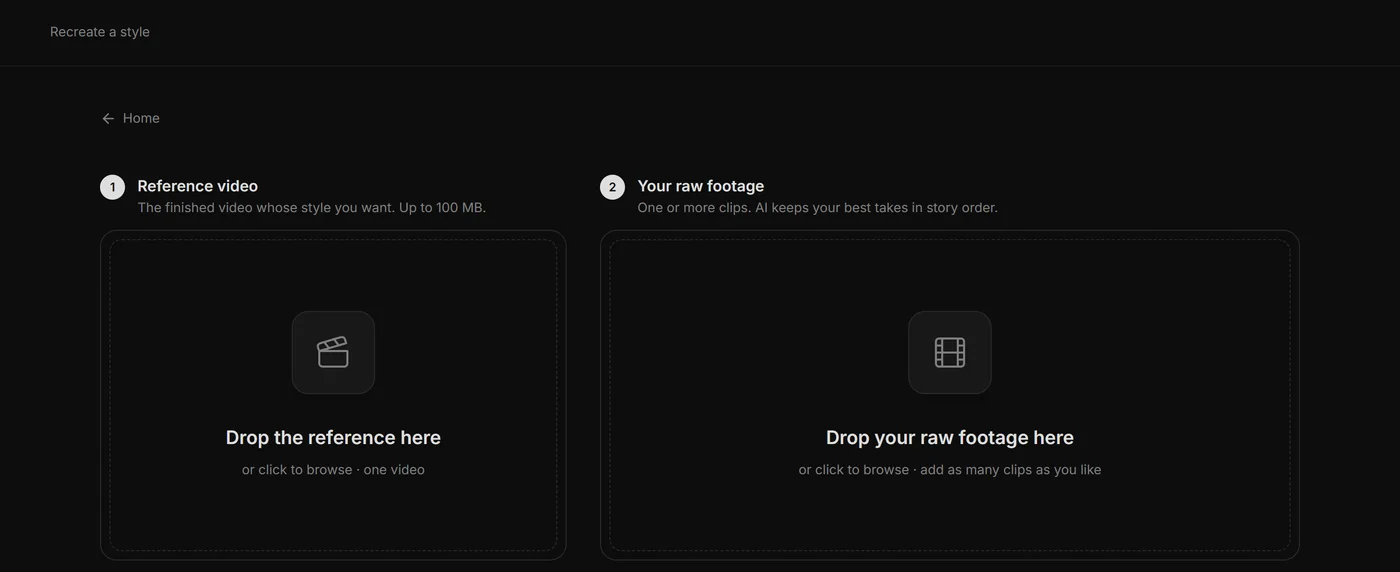
In Viewcat, open Recreate a style. Drop in the reference (one finished video, up to 100 MB) and your raw clips (as many as you like). Viewcat keeps your best takes in story order and cuts the pauses. Then its director model studies the reference frame by frame and rebuilds its captions, motion graphics, fonts and pacing on your words.
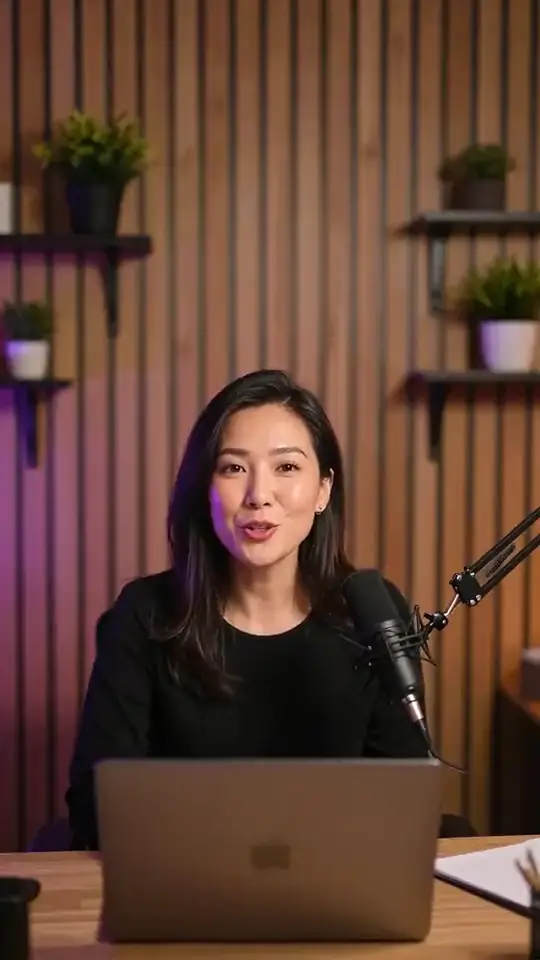
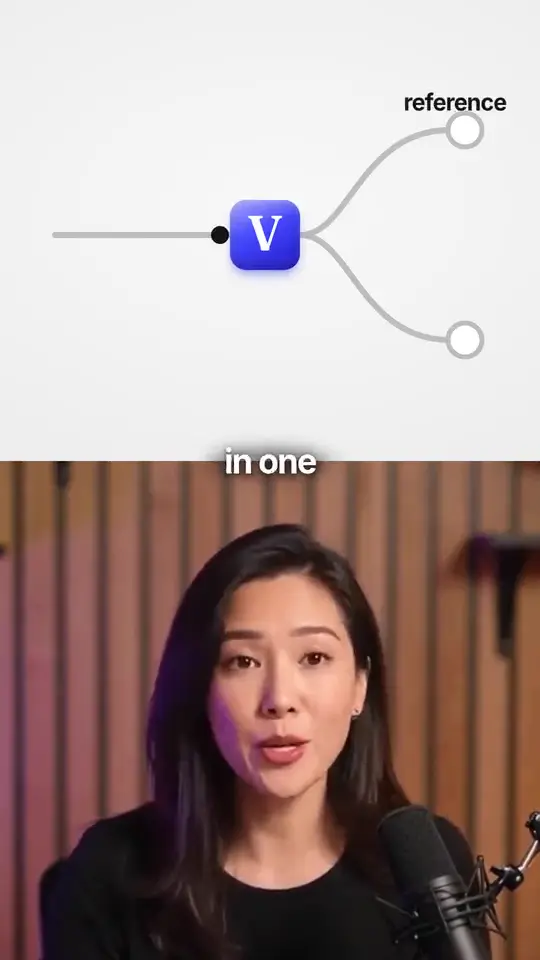
You can run the same job with your own Claude Code or Codex instead of Viewcat AI; the reference is handed to your agent. See how to edit videos with Claude Code.
Check what the AI got wrong
AI gets the look close quickly, but it still guesses. Read its notes, then go through the video yourself:
- Names and brand words in captions. Transcripts mishear them; one run heard "VueCat" for Viewcat.
- Numbers inside graphics. If you did not give them, they are placeholders.
- Text size at phone scale, and graphics that cover your face.
- Pacing. A reference cut for a fast talker can clip a slower speaker's words.
Fix small things by clicking the card on the timeline; ask for larger changes in the chat. The whole AI edit undoes in one step.
When a reference does not fit your footage
Some looks depend on footage you do not have. A style built on screen recordings will not suit a talking head, and a 15-second hook format will feel rushed over a 10-minute explanation. Keep the parts that suit your material, usually captions, colours and fonts, and drop the rest.
Save the style and reuse it
When the result looks right, save it as a style. Saved styles stay on your computer, and Viewcat asks whether to share one with the community. Your next video starts from the finished look instead of the reference.
Questions creators ask
See the full feature on the Recreate a style page.