Claude Code Video Editing: How to Edit Videos With Claude
Claude can edit videos, but not by itself in the chat window: it has no timeline and can't render a file. Claude Code can, because it runs on your computer and writes code. It can cut with FFmpeg, build motion graphics as code with Remotion or HyperFrames, or drive a real video editor through MCP. This guide compares the three routes, then walks through the editor route step by step, with a free plan you can try today.
Can Claude edit videos?
Yes, with the right setup. What Claude can do depends on where you use it:
- Claude in the chat app or on claude.ai can plan an edit, write a script or suggest cuts from a transcript, but it can't open, cut or export a video file.
- Claude Code runs on your computer, so it can run tools. It edits by writing code: FFmpeg commands for cuts, or animated graphics written in React (Remotion) or HTML (HyperFrames) and rendered to video.
- Claude Code connected to a video editor through MCP (Model Context Protocol) reads your project and puts its edit on the editor's timeline, where you can change any piece by hand.
The rest of this guide covers Claude Code, because that is where real editing happens. Everything here works the same with OpenAI's Codex.
Three ways to edit video with Claude Code
| FFmpeg scripts | Remotion or HyperFrames | Connected editor (MCP) | |
|---|---|---|---|
| Best for | Cuts, silence removal, burned-in subtitles, batch exports | Motion graphics, animated titles and data videos built from code | Full edits of your own footage: captions, graphics, camera moves |
| What you get | A rendered MP4 | A rendered MP4 and the code that made it | Cards on a timeline in the editor, then your export |
| Fixing a mistake | Ask again, or edit the command | Ask again, or edit the code | Click the card and fix it by hand, or undo the whole edit |
| What you install | FFmpeg | Node.js and the framework | The editor |
| Cost beyond your Claude plan | None | Remotion needs a paid license for larger companies; HyperFrames is open source | Viewcat's Free plan, or a paid plan for unlimited exports |
Route one is the classic: point Claude Code at a folder of clips, ask it to remove pauses or burn in subtitles, and it writes and runs the FFmpeg commands. It is fast for mechanical jobs, but you review a finished file, and every fix is another prompt.
Route two is how people get motion graphics out of Claude Code. Remotion turns React components into video, and HyperFrames, an open-source framework from HeyGen, does the same with HTML. Claude is good at writing both, which is why "Claude Code Remotion" tutorials are popular. You still review a rendered file, and placing the graphics over your own footage is up to you.
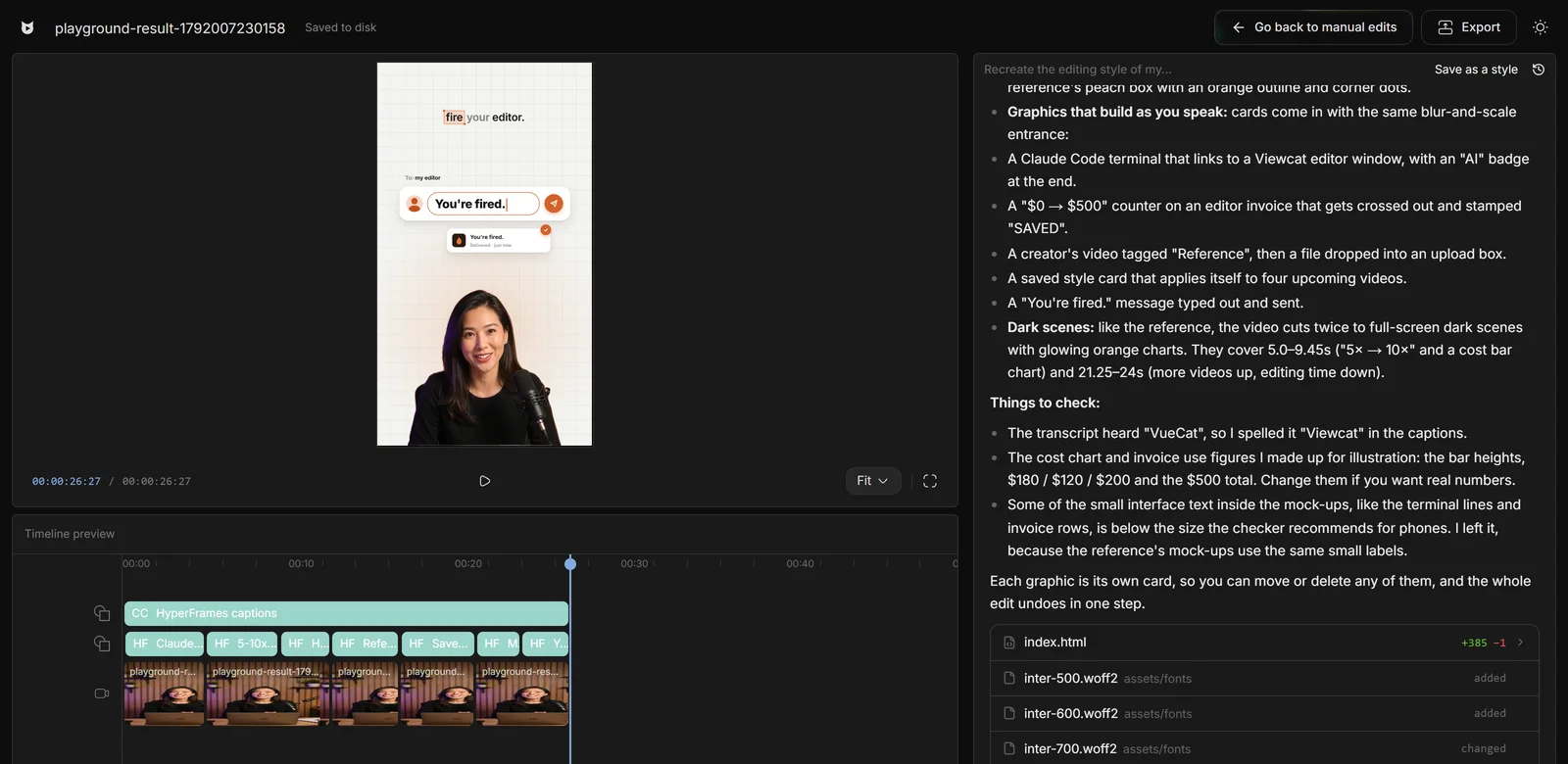
Route three gives Claude Code an editor to work in. The rest of this guide uses Viewcat, which is built for it: Claude Code writes HyperFrames graphics and captions through Viewcat's MCP tools, and Viewcat checks them and places each one on your timeline.
What you need
- Claude Code signed in on your computer, on a Claude plan that includes it. Codex works the same way with your ChatGPT sign-in.
- Viewcat on a Windows (64-bit) PC or an Apple Silicon Mac. It's a free download, and connecting your own agent works on the Free plan.
- Footage you recorded. Start with one short talking-head clip rather than a full YouTube video.
Step 1: Connect Claude Code to the editor
Download and open Viewcat, start a project, then open the AI chat's agent menu and pick Claude Code. The chat shows two steps: Sign in, which opens Claude Code's own login, and Connect. Connect registers Viewcat's MCP server with Claude Code, so the agent gets tools to read your project, write an edit, preview it and apply it.
You can also connect from a terminal with Viewcat.exe --connect claude, or --connect codex for Codex. You don't need to edit any MCP configuration by hand.
Step 2: Open the project and keep the editor open
Import your clip into a new project. Viewcat transcribes it and prepares the footage. Keep the editor tab open while the agent works: that tab is what prepares the footage and places the finished cards on your timeline.
Pick the model and effort in the menu. You can change them between requests. The project's chat stays with the agent it started on, though; to switch from Claude Code to Codex, start a new project.
Step 3: Describe one edit
Ask for one clear change, and say where it goes and what it must not cover. A specific request is easier to check than a list of ten. Our guide to writing AI editing prompts covers this in more depth.
Add bold white animated captions, and a title card in the first two seconds that says "Three edits that save me an hour". Keep every graphic clear of my face.
You can type the request in Viewcat's chat or in Claude Code itself. Both show the same conversation, so it does not matter where you ask.
Step 4: Let it check its own frames
Claude Code writes each graphic as HTML, runs Viewcat's structural check, then renders every card and looks at the frames before applying anything. Viewcat refuses to apply a card that changed since it was last rendered, so the agent cannot skip that look.
When it applies the edit, the cards land on your timeline as one change. One undo removes the whole edit if you do not like it.
Step 5: Read its notes, then fix anything by hand
A good agent tells you what it was unsure about. In the run below, it noticed the transcript had heard "VueCat" and spelled it "Viewcat" in the captions. It also warned that the numbers on its cost chart were made up for illustration and should be replaced with real ones.
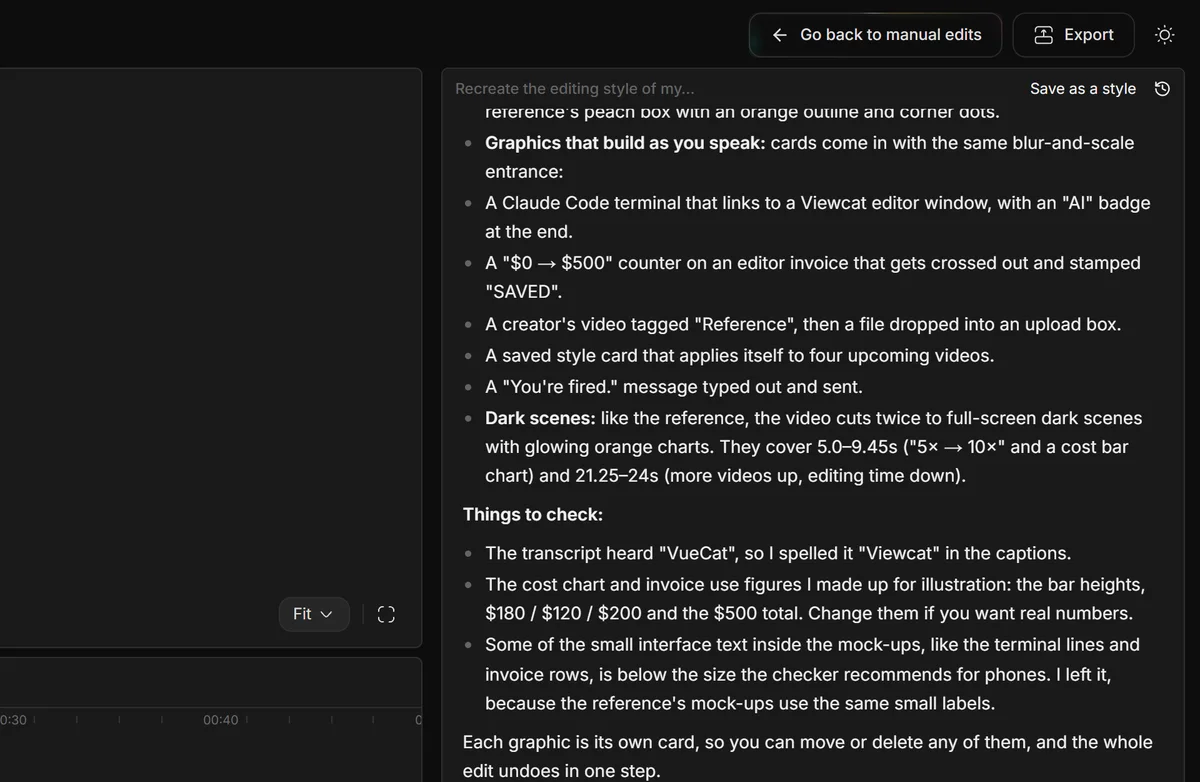
- Check every number, name and claim inside a graphic. Agents fill gaps with plausible placeholders.
- Watch at phone size. Small labels inside mock-ups can be too small to read.
- Fix small things by hand: click a card to move, trim or delete it.
- Ask for bigger changes in the chat, one at a time, naming the moment or the card.
Reuse a look you like
Once an edit looks right, save it as a style from the chat. The next video can start from that style instead of a blank request. You can also give the agent a video whose editing you like and ask it to rebuild that look on your footage; see how to copy a video's editing style.
Mistakes to avoid
- Asking for everything at once. Ten changes in one request make it hard to tell which instruction caused a problem.
- Closing the editor tab mid-edit. The agent needs it to place cards.
- Publishing numbers you did not give it. Treat any figure in a graphic as a placeholder until you check it.
- Switching agents inside one project. Start a new project for a different provider.
Questions creators ask
More detail is on the Claude Code video editing page. To see what Claude Code can build, browse AI motion graphics in Viewcat.
Sources and further reading
Product details checked 2026-11-17. Plans can change.