Best AI Video Editors for Creators: Choose by the Job
The best AI video editor depends on what slows you down. Editing an interview through its transcript is a different job from adding captions to a short video or placing visual effects on a timeline. Start with that bottleneck, then check how easily you can correct the tool’s decisions.
A shortlist based on the work you need done
You do not need every tool in this list. Choose the row closest to your next project, then inspect the relevant plan and try a small piece of your own footage before moving a whole workflow.
| Your main job | Tool to investigate | What to check first |
|---|---|---|
| Reshape a spoken explanation | Descript | Transcript corrections and included usage |
| Edit in a browser | VEED | Which tasks and export settings your plan includes |
| Apply a visual style with AI | Captions | AI Edit access and ways to revise the result |
| Add captions and make basic edits for free | Clipchamp | Personal-plan terms and premium elements |
Descript for transcript-based editing
Descript’s editing workflow connects video editing with the transcript. That makes it worth investigating if much of your work is deciding which spoken lines belong in an interview, tutorial, or talking-head video.
For that kind of project, test a sentence with a correction or a repeated take. Check whether the text matches the audio and whether the resulting cut sounds natural. Transcript editing still needs a listening pass; reading a clean paragraph is not enough to judge a spoken transition.
Check the current plan’s media and AI allowances before bringing in a long recording. A tool can suit the editing task while its free allowance is too small for your publishing schedule.
VEED for a browser workflow
VEED’s editor supports imported footage, timeline editing, and AI-assisted tools in a browser. It is a relevant option if you want editing and caption-related tasks in an online workspace.
Check the download terms early. VEED’s documentation describes watermarked free exports and limited AI trials. Being able to open an AI tool does not establish that every use of it, or the finished download you want, is included.
Try a small edit and inspect the output settings before spending an afternoon on a project. Our free AI video editor guide covers the questions to ask about trials and exports.
Captions for AI-led styling
Captions describes an AI Edit workflow that applies a selected style to uploaded footage, with elements such as cuts and B-roll. It also advertises instructions through chat.
That is worth investigating when your starting point is a recorded clip and you want help deciding its visual treatment. Before subscribing, check the availability of the specific AI Edit workflow and how you would revise a cut or supporting shot that misses the point.
The site describes some free access and subscriptions for more features. Check the current offer for your device and account rather than assuming the workflow shown in a product demo is included in a free plan.
Clipchamp for free captions and core editing
Microsoft’s personal-plan documentation lists free core editing tools, free stock media, and watermark-free exports up to 1080p. Clipchamp also documents free automatic captions. That is a useful starting point if captions and straightforward editing are your immediate needs.
Check whether the assets or effects you choose are premium. Work and school accounts have different licensing rules, so use the terms for the account you will actually edit with.
Where Viewcat fits
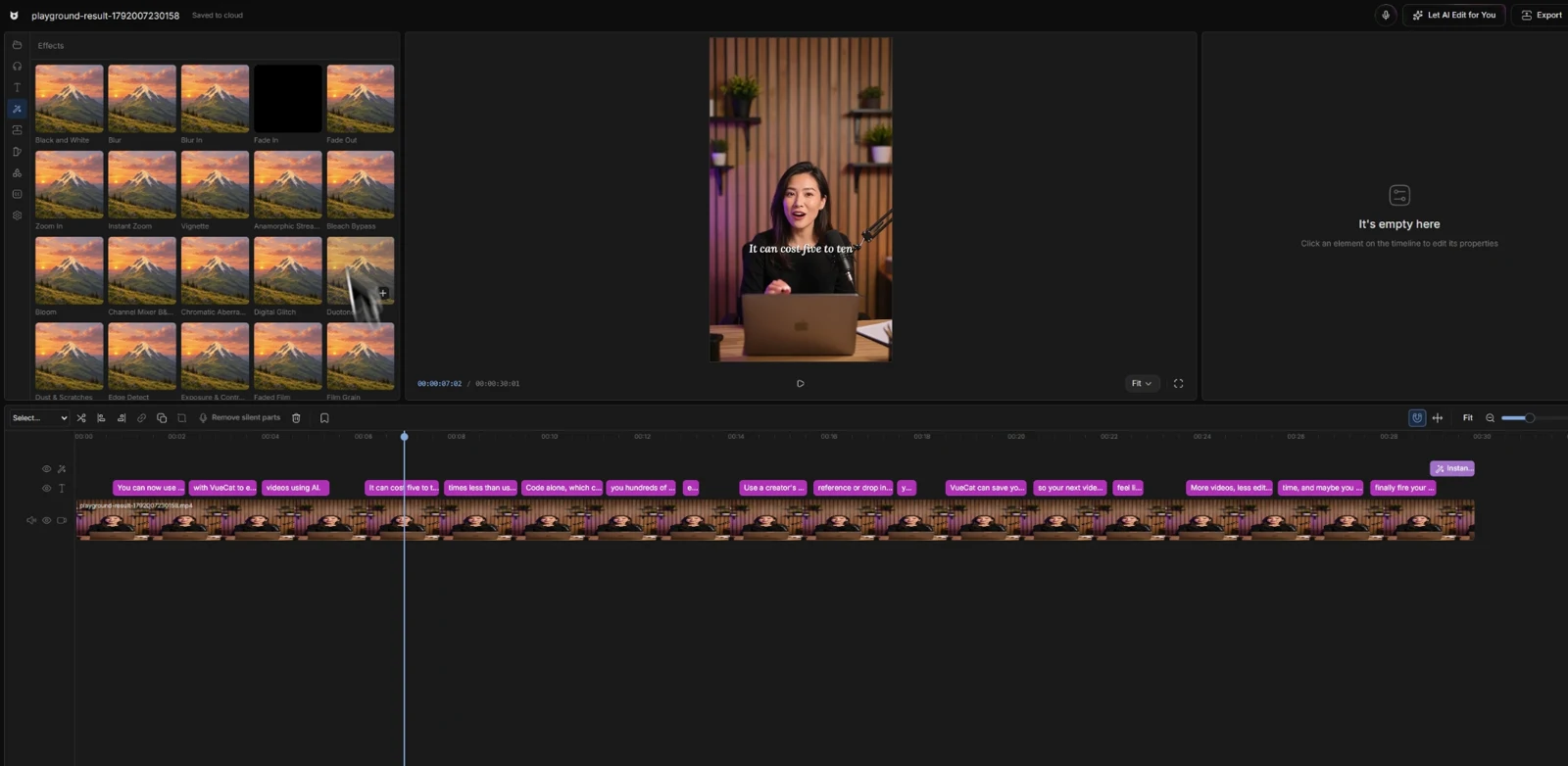
We are building Viewcat for creators who want to direct an edit and retain a timeline they can work on. The development demo shows caption styling, a request for zoom-ins, effect tracks, and B-roll placement. Those are interface examples, not evidence that Viewcat is faster or better than the tools above.
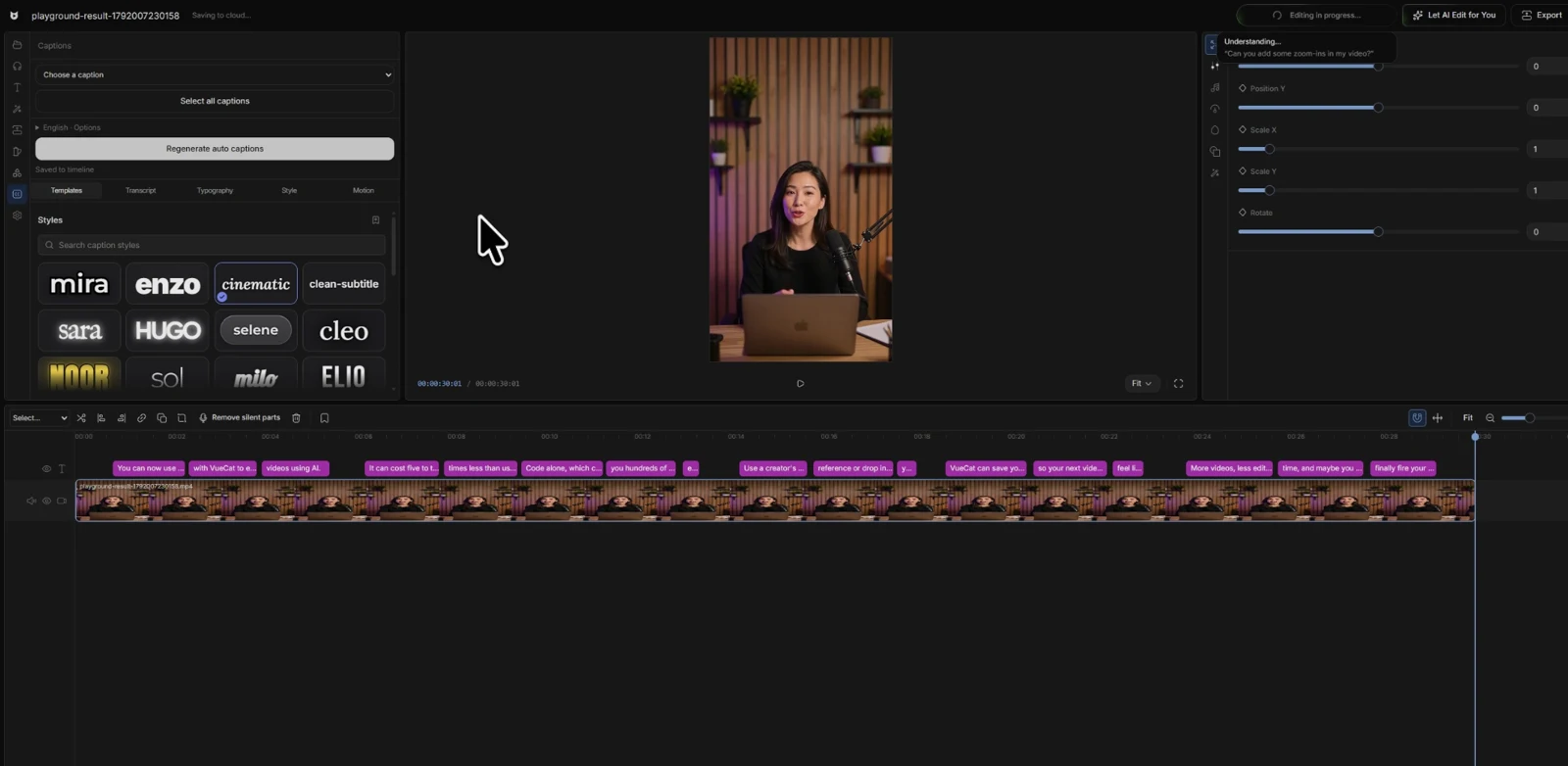
The planned free editor includes normal uploads and manual editing, manually entered captions, effects, transitions, and B-roll. Mic mode, automatic captions, and Let AI edit for you—including cleanup and HyperFrames—are planned paid features.
Public access is still coming soon. Read how the AI-assisted editing workflow works, or explore the product for context. This comparison does not place an unreleased product above tools you can use today.
Try the same small editing task in your shortlist
A feature list cannot tell you whether you will enjoy working in an editor. Use a short clip with one repeated sentence, a name that captions might miss, and a point that could use a supporting shot. Then compare the correction process.
- Import the clip and make one specific edit.
- Check and correct a caption instead of accepting the first transcript.
- Preserve a pause that matters to the speaker’s meaning.
- Find the controls for revising a cut, effect, or supporting shot.
- If the plan permits it, export a short sample and inspect the result.
Choose the editor that handles your recurring task and lets you repair its mistakes without a struggle. If prompts are part of that workflow, use our editing brief template to make the trial more consistent.
Sources and further reading
Product details checked 2026-10-15. Plans can change.